

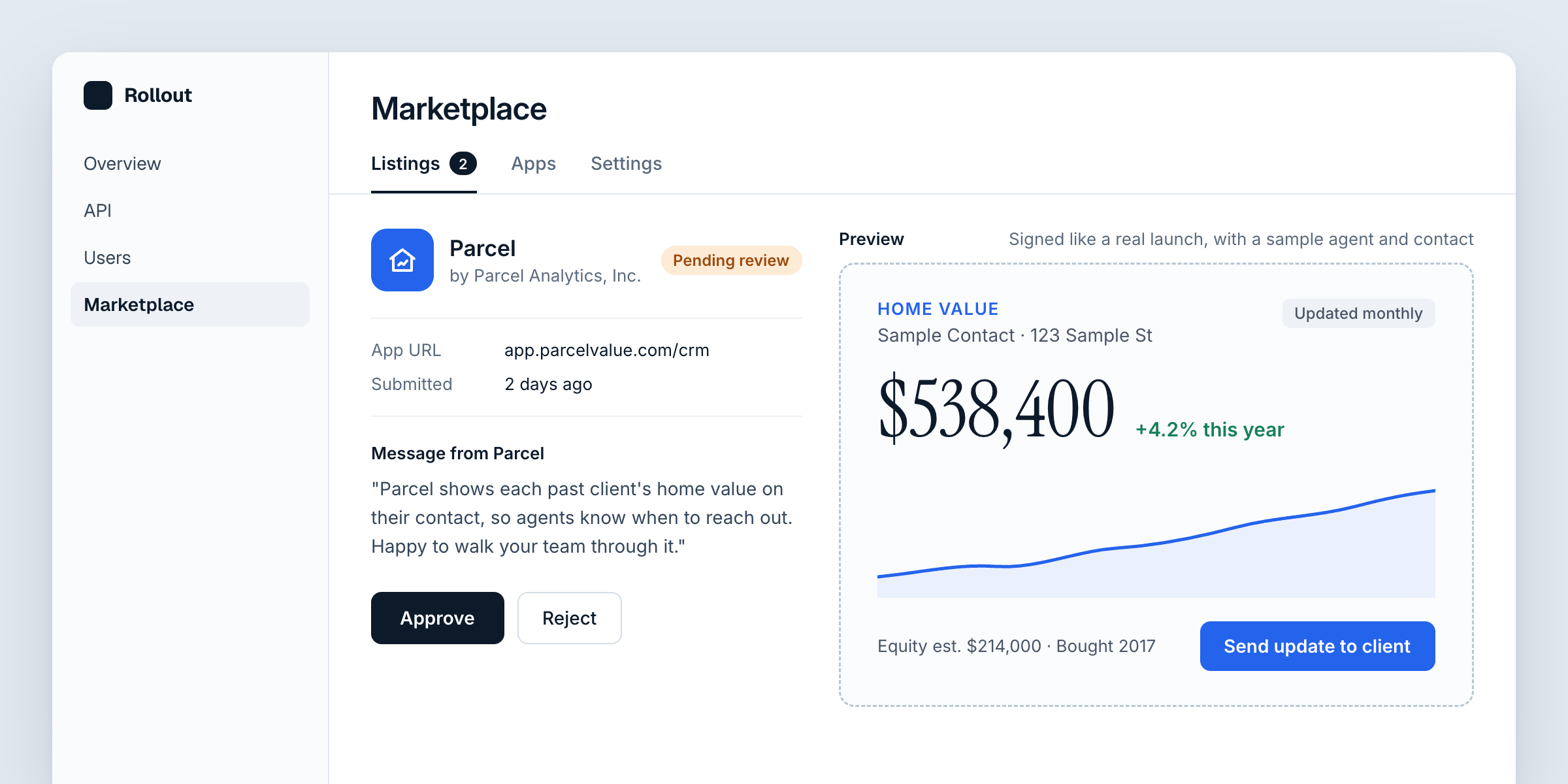
A listing in the review queue, with the publisher's message and the app running in a live preview.
The Listings tab
Your review queue, oldest first, with rejected listings below it. A listing shows the app as users will see it on its card, its publisher, its URL, the publisher’s message to you, and a preview.The preview
The preview loads the app in a bordered frame with a made-up user and contact, signed the same way as a real launch. The context saysx.preview: true, so the
app can tell it from a real user.
- The app may resize itself, up to 800px, past which it scrolls, and ask for a fresh context, as it would in your CRM.
- An app that hasn’t answered Rollout’s handshake within five seconds is reported as not answering.
- If the app restricts who may frame it, it has to allow
https://dashboard.universal.rollout.comfor the preview to load.
Approve or reject
- Approve makes the app available to your users. They still have to turn it on. It’s available once the preview has been signed.
- Reject needs a note, up to 2,000 characters, which the publisher sees. The publisher can fix the app and list it again.
The Apps tab
Your approved and suspended apps, with how many users and orgs have each one on.- Suspend needs a note, up to 2,000 characters. It hides the app from every user at once, without turning it off for them.
- Reinstate restores it, with every user’s and org’s choice as it was.
What to look for
- It’s useful on a contact. The app should show something about this agent and this contact, not a generic landing page.
- It works in the preview. It should show sample data on a preview, rather than a sign-in screen.
- Its listing is complete. An icon, a clear tagline and description, and support and privacy policy links help your users decide.