The marketplace shows up in three places: on your contact pages, on a settings page where users turn apps on, and in your Rollout dashboard, where you decide what’s in it.

1. On a contact: the apps
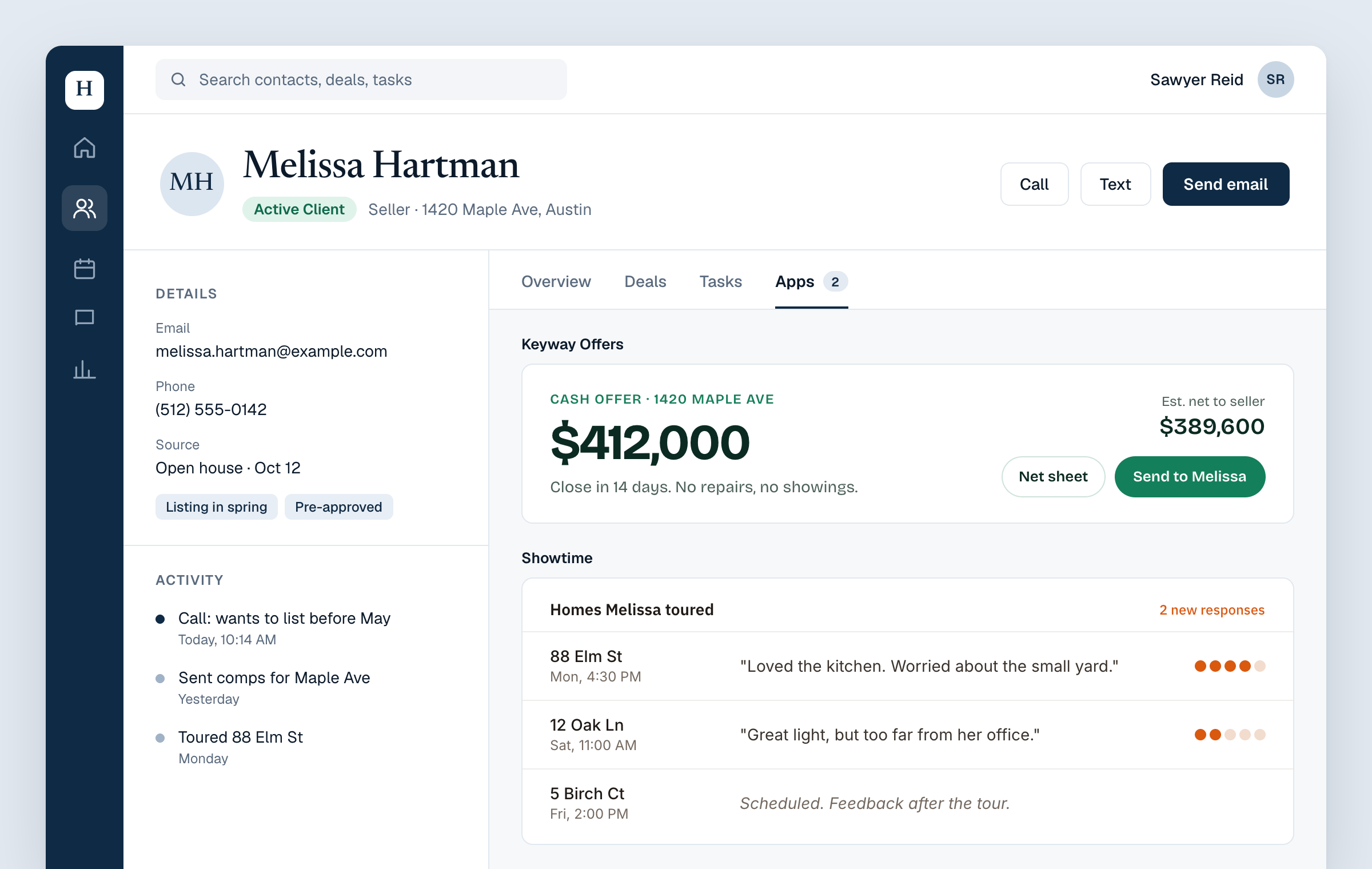
A contact page with an Apps tab showing a cash offer app and a showing notes app, stacked.

The apps an agent turned on, in an Apps tab on the contact page. The tab is yours: you choose where the apps go.

When an agent opens a contact, every app they or their org turned on shows in the place you mounted it, one under the other, each under its name. Each app takes the height its content needs. Each app is about this agent and this contact. When the agent moves to the next contact, every app reloads for that one. An app that fails to load never shows an empty box: Rollout shows an app only once it has loaded and said it’s ready. And when an agent has no apps on yet, you can show your own message, such as a link to the marketplace. Your page mounts this with mountEmbeddedApps().

2. In settings: the marketplace
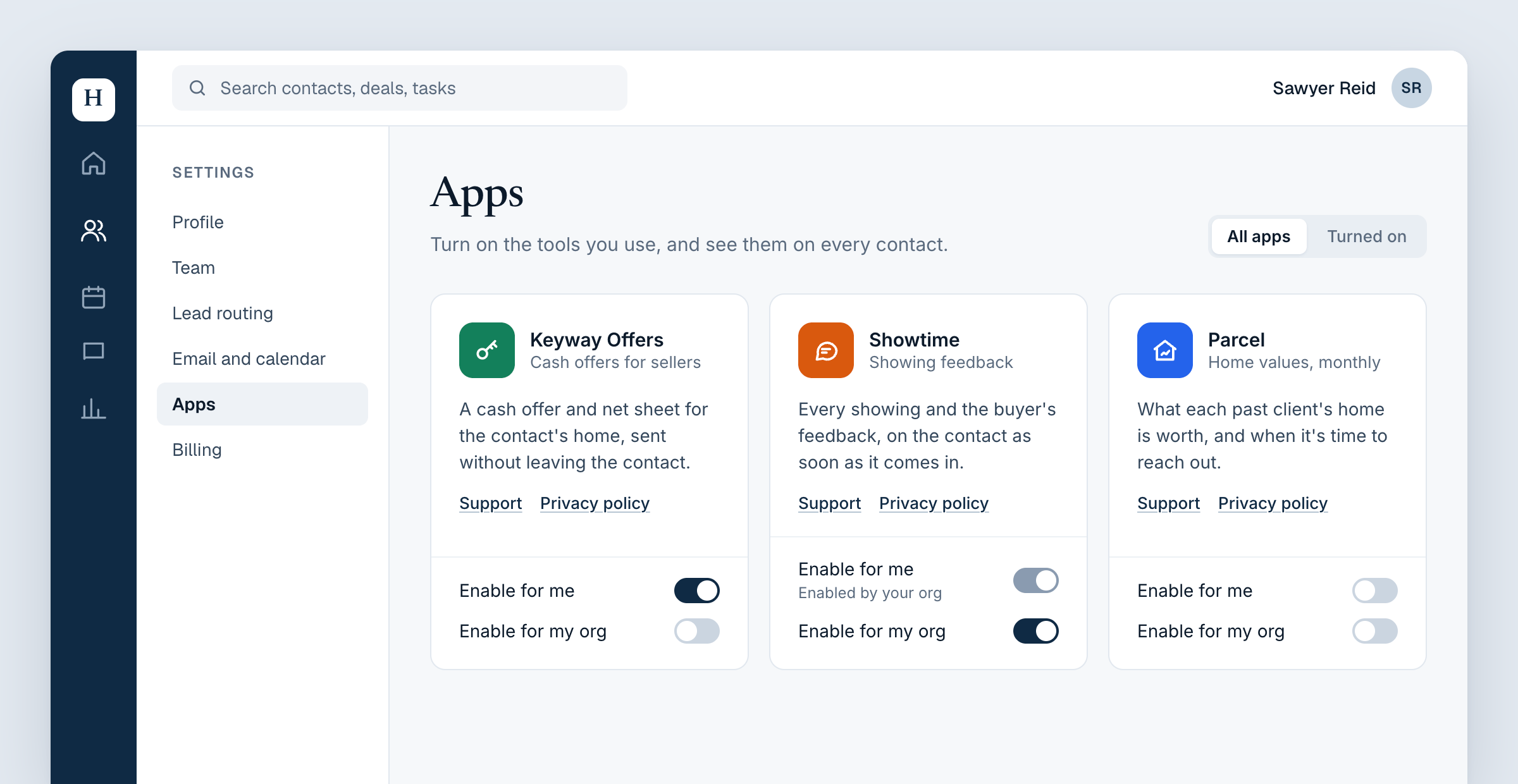
A settings page listing three apps as cards, each with an icon, description, links, and switches to enable it for me or for my org.

The marketplace on a settings page. An admin has turned Showtime on for their whole org, so it's on for every agent in it.

The marketplace lists every app you’ve approved as a card: its icon, name, tagline, description, and links to its support and privacy policy pages. Each card has switches:
  • Enable for me: an agent turns the app on for themselves.
  • Enable for my org: an admin turns it on for everyone in their org, such as an office or a team. Agents then see “Enabled by your org”.
You choose which of those your marketplace allows. The marketplace takes your page’s fonts and colours, and you can style it further, or build your own in your design system. Your page mounts this with mountEmbeddedAppMarketplace().

3. In your dashboard: the review queue
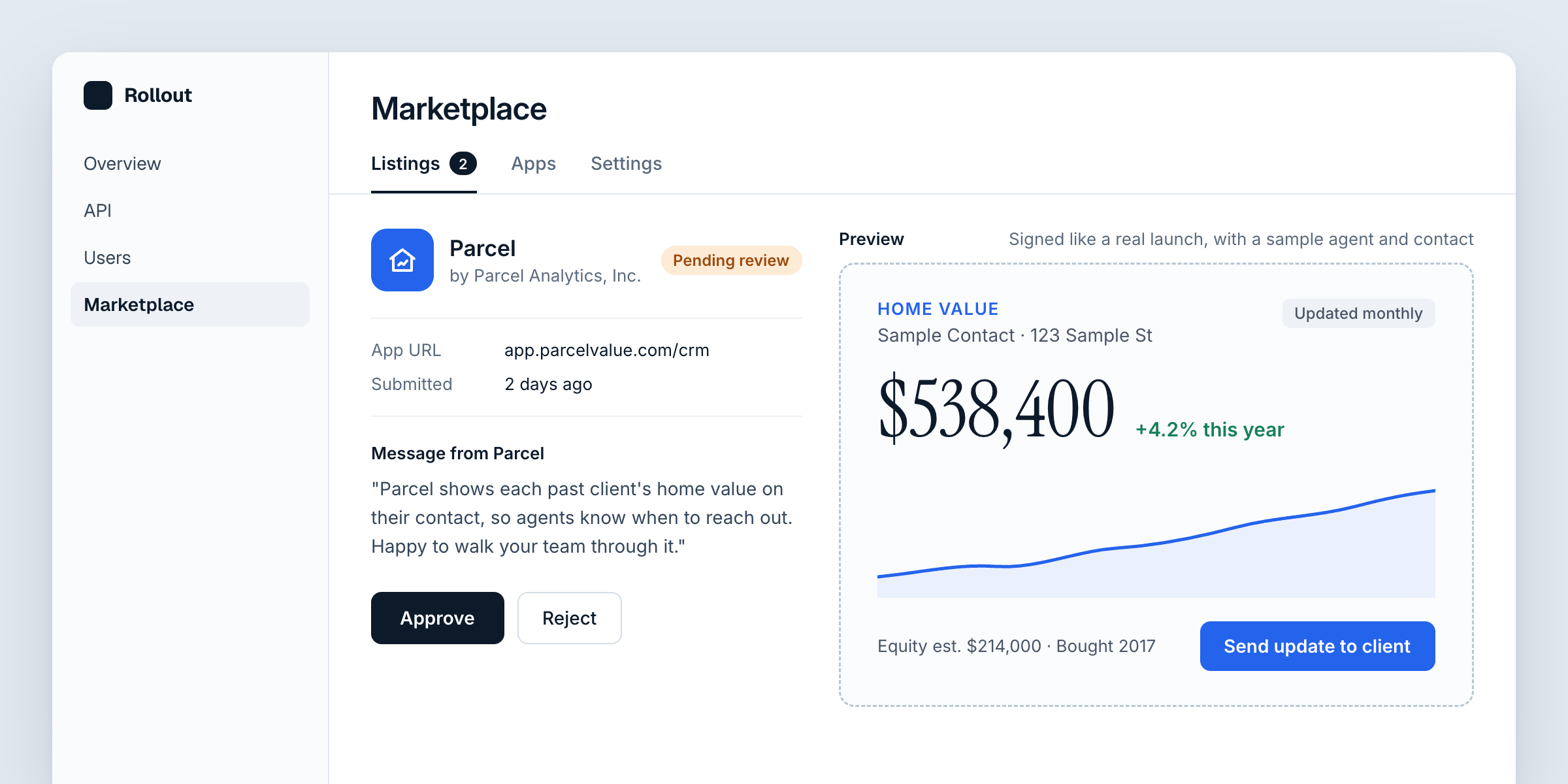
The Rollout dashboard's Marketplace Listings tab, showing an app's details and its publisher's message beside a live preview of the app, with Approve and Reject buttons.

A listing waiting for review in the Rollout dashboard, with the app running in a live preview.

App publishers list their apps in your marketplace from their side of Rollout. Each listing waits in your Listings tab, with the publisher’s message to you and a live preview of the app, running with a made-up agent and contact. You approve it, and it appears in your users’ marketplace. Or you reject it, with a note the publisher sees. Later, you can suspend an approved app, which hides it from everyone at once, and reinstate it just as fast. Review apps walks through each step.

Next

See how it works: what happens between an agent opening a contact and the apps appearing.